In Litigation Ready, you can delete documents individually or in bulk.
Deleted documents are moved to the Recycle Bin, where they can be restored or permanently removed.
Deleting a document #
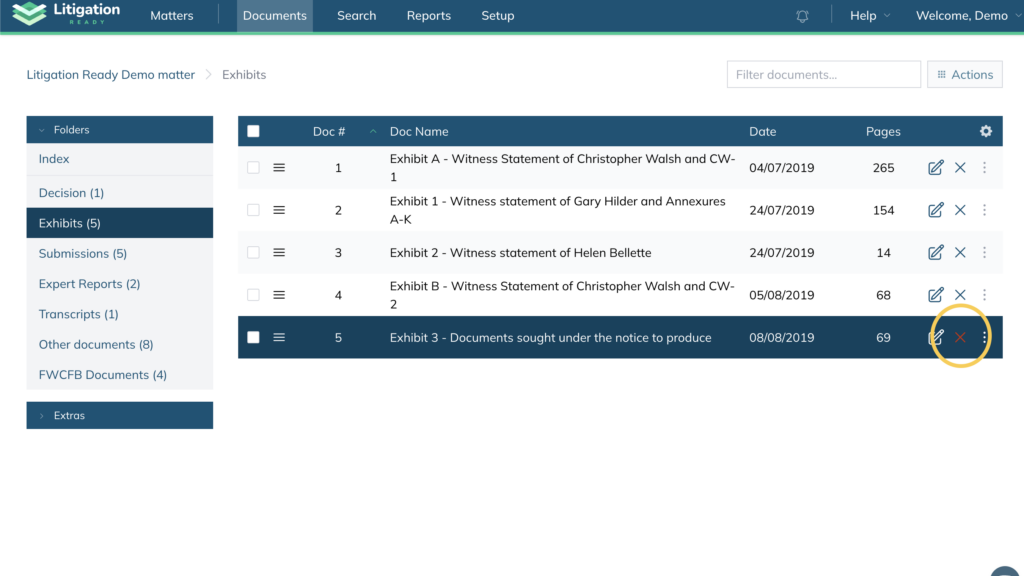
To delete an individual document:
- Locate the document in your folder.
- Click the X icon on the right-hand side next to the document name.
The document will be moved to the Recycle Bin.
Deleting Multiple Documents #
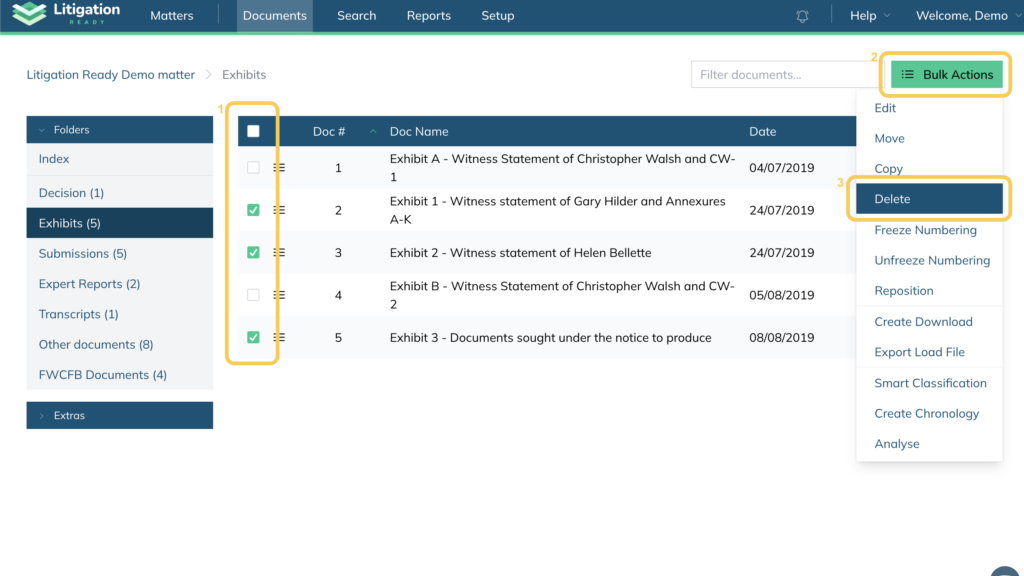
To delete several documents at once:
- Select the documents using the checkboxes.
- Go to Bulk actions.
- Click Delete.
All selected documents will be moved to the Recycle Bin.
Recycle Bin and Retention Period #
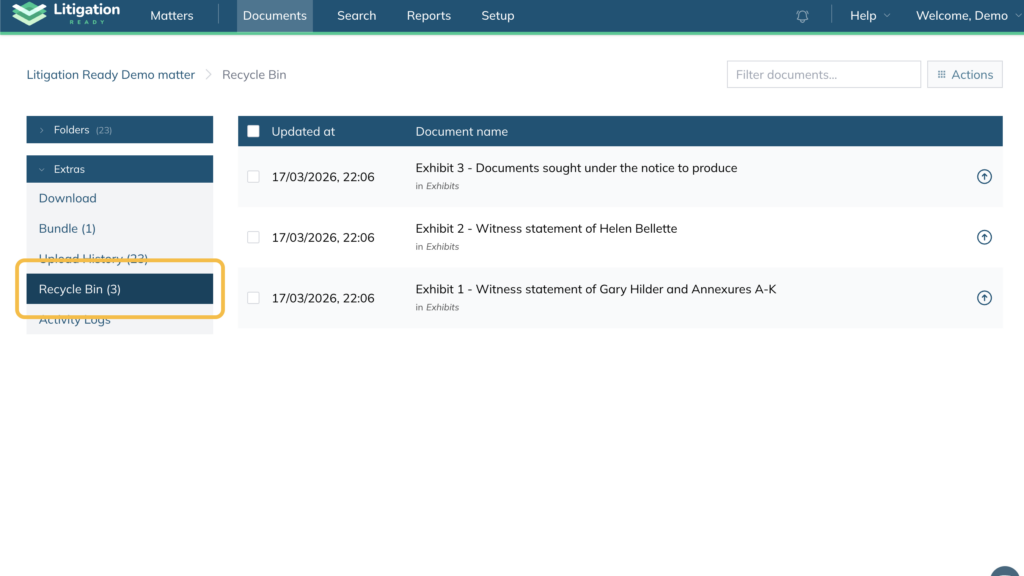
Deleted documents are not immediately removed from the system. They are temporarily stored in the Recycle Bin, under the Extras section.
- Documents remain in the Recycle Bin for a defined retention period.
- This retention period is set by your organisation administrator.
- The duration can be configured between 7 and 180 days.
After this period has elapsed, documents are permanently deleted from Litigation Ready and cannot be recovered.
Restoring Deleted Documents #
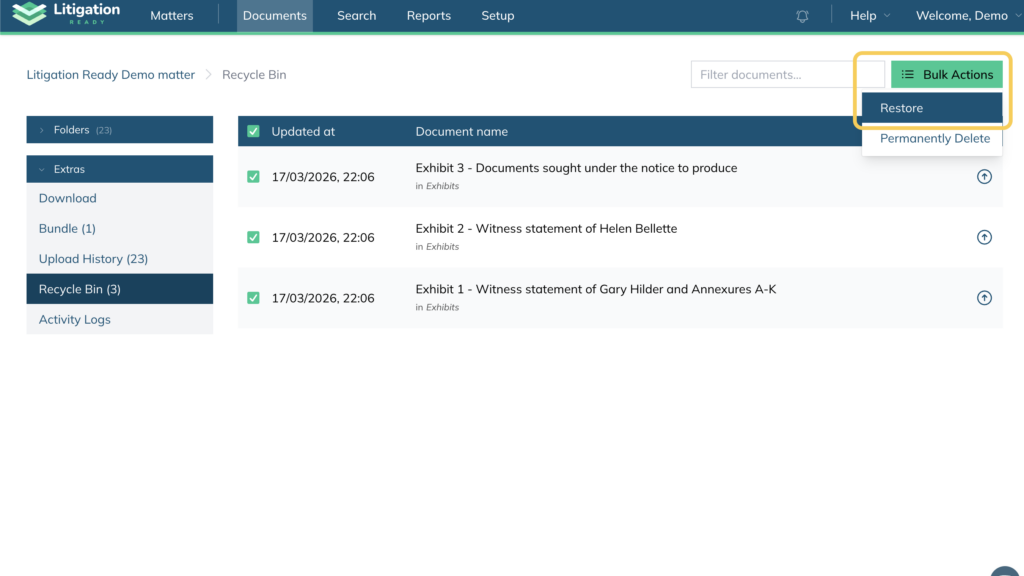
You can restore documents that you have deleted by accessing the Recycle Bin.
To restore documents:
- Go to Extras.
- Select Recycle Bin.
You can then:
- Restore a single document by clicking the Restore icon on the right-hand side next to the document name.
- Restore multiple documents by selecting them, then choosing Bulk actions and clicking Restore.
Restored documents will return to their original location within the matter.
Permanently Deleting Documents #
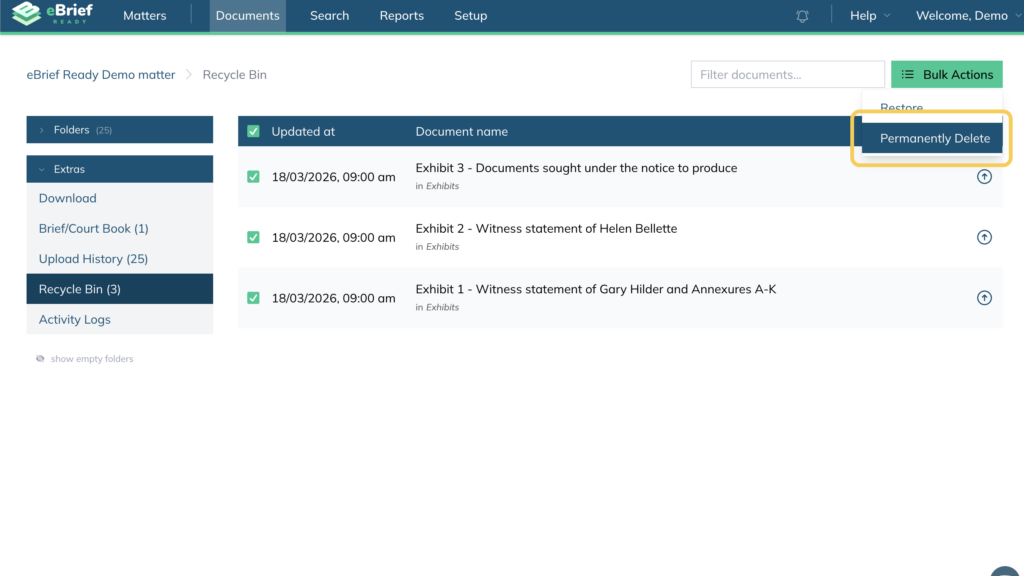
If you want to remove documents immediately in your Recycle Bin and bypass the retention period:
- Go to Extras, then select Recycle Bin.
- Select one or more documents.
- Open Bulk actions and click Permanently delete.
This action will permanently remove the documents and they cannot be recovered.